Agent Network
The Agent Network connects the agents on all of your computers. An agent on your laptop can message an agent on your server by name, ops@home-server, the same way it messages an agent on the same machine.
Overview
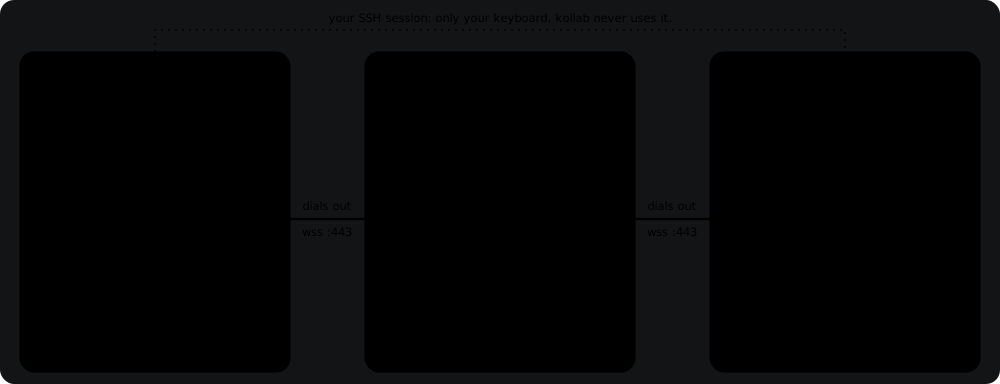
On one computer, the Hub lets agents find and message each other. The network is the same thing across computers: one network per person, made of the computers you join to it.
- agent@device handles — every agent appears in every other device's roster as
agent@device. Keys and relay addresses never show up in the UI. - Hub rules, everywhere — a message to
agent@deviceis delivered to that computer, wakes that agent, and is observed by the rest of the network, exactly like a local message. - End-to-end encrypted — the directory (kollabor.ai, or your own) only routes sealed messages. It cannot read them.
- One command —
/connectdoes the setup, the roster, and the approvals.
Terms
| Term | Meaning |
|---|---|
network | A hub across computers, with a name, a directory, and a trust level. The device that starts it names it <device>-net, for example laptop-kollab-net. |
device | One workspace identity with a human name, such as laptop-kollab. Rename it with /connect name. |
directory | kollabor.ai, or any domain that runs its own. It holds the signed key file and forwards sealed messages. |
join code | Eight characters, XXXX-XXXX. Works for one device, for five minutes. |
trust | One setting per network: open, agents, or manual. |
knock | A sealed introduction from a stranger outside your network. |
Before You Start
- Kollab 0.13.0 or newer on every computer. Run
kollab --upgradeto update an existing install. From 0.13.0, computers on different versions keep working together: each side ignores what it does not know yet, and if a gap ever gets too big, Kollab says which side to update. - A terminal on each computer for the first setup. On a server, that is one SSH session: start
kollab, then type a code. - Kollab running on a computer whenever its agents should be reachable. On a server, keep it open in
tmux, or runkollab --detached. See Keep a Device Online.
First Launch: The Guided Setup
The first time a computer runs Kollab 0.11.0 or newer (for example right after kollab --upgrade), Kollab shows one notice before you have typed anything:
 Connect

 New: connect your agents across computers.
 Enter sets it up now; Esc for later (/connect any time).

enter set up now esc later- Enter, on a computer with no network. Choose Start a new network on kollabor.ai or Join with a code. Starting a network opens the Connect screen with the join code and an "On your other computer" box (below). Joining opens the private code form.
- Enter, on a computer already on a network. Opens the Connect screen.
- Esc. Leave it for later.
/connectdoes the same thing at any time. - After a join. One line says settings arrive sealed from the computer that issued the code, and that a ChatGPT login does not travel: run
/loginon this computer.
 On your other computer
   1) kollab --upgrade
   2) run kollab and press Enter on the same notice
   3) choose Join with a code and type the code
Asked once per computer. Enter and Esc both count as an answer and write one marker file, ~/.kollab/connect-guide-seen. Quitting without answering shows the notice again next launch; delete the file to see it again. It never appears in pipe mode, in detached or daemon agents, with a query on the command line, or without a terminal.
Join a Computer With a Code
You do this once per computer. Call the computer already on the network A, and the new one B.
1. Get a Code on A
On A, run /connect. The Connect screen opens with a code, counting down. On a small terminal, /connect code shows just the code on a private screen.
 Connect
 network      laptop-kollab-net  via kollabor.ai   trust: open
 this device  laptop-kollab
 join code    XXXX-XXXX   one device, expires in 4:58
 requests     none
 online       lapis (this device)
A first computer with no network has nothing to show yet. Run /connect, leave the code empty and press Enter to start a network on kollabor.ai, named after this device. Then run /connect again.
2. Enter the Code on B
On B, run /connect with nothing after it, type the code into the private form and press Enter. Upper or lower case, with or without the dash. The form keeps watching until A decides; Esc closes it and the request keeps waiting, and /connect status shows where it stands.
 Connect
 network      none
 join code    [ XXXX-XXXX ]

 request sent to kollabor.ai; waiting for approval on another device
3. Accept on A
Within about 10 seconds, A's screen shows the request with the new device's ID. Press a to accept or r to reject, or run /connect accept home-server. A guessed code still needs you to press a, so check that the device name is the one you expect.
# on A
 requests     home-server wants to join   device ID 1a2b…3c4d   [a]ccept [r]eject

 accepted home-server. it is now a trusted device on laptop-kollab-net.

# on B
 joined laptop-kollab-net as home-server. trust: open
Every device on the network is now listed on the Connect screen and in /connect status, with its agents as agent@device. B joins as <hostname>-<folder>; rename it any time with /connect name <name>.
- A code works for one device. After you accept or reject a request it reads
used; after five minutes unused it readsexpired. Presscfor a new one. - Codes go only in the private form. If you type a code into a command or into chat, Kollab refuses it, and codes never reach its logs.
- To join a directory other than kollabor.ai, run
/connect <domain>. See Run Your Own Directory. - One window per workspace runs the network. A second window in the same workspace shows it read-only and points you to the window that runs it.
The Join, Step by Step
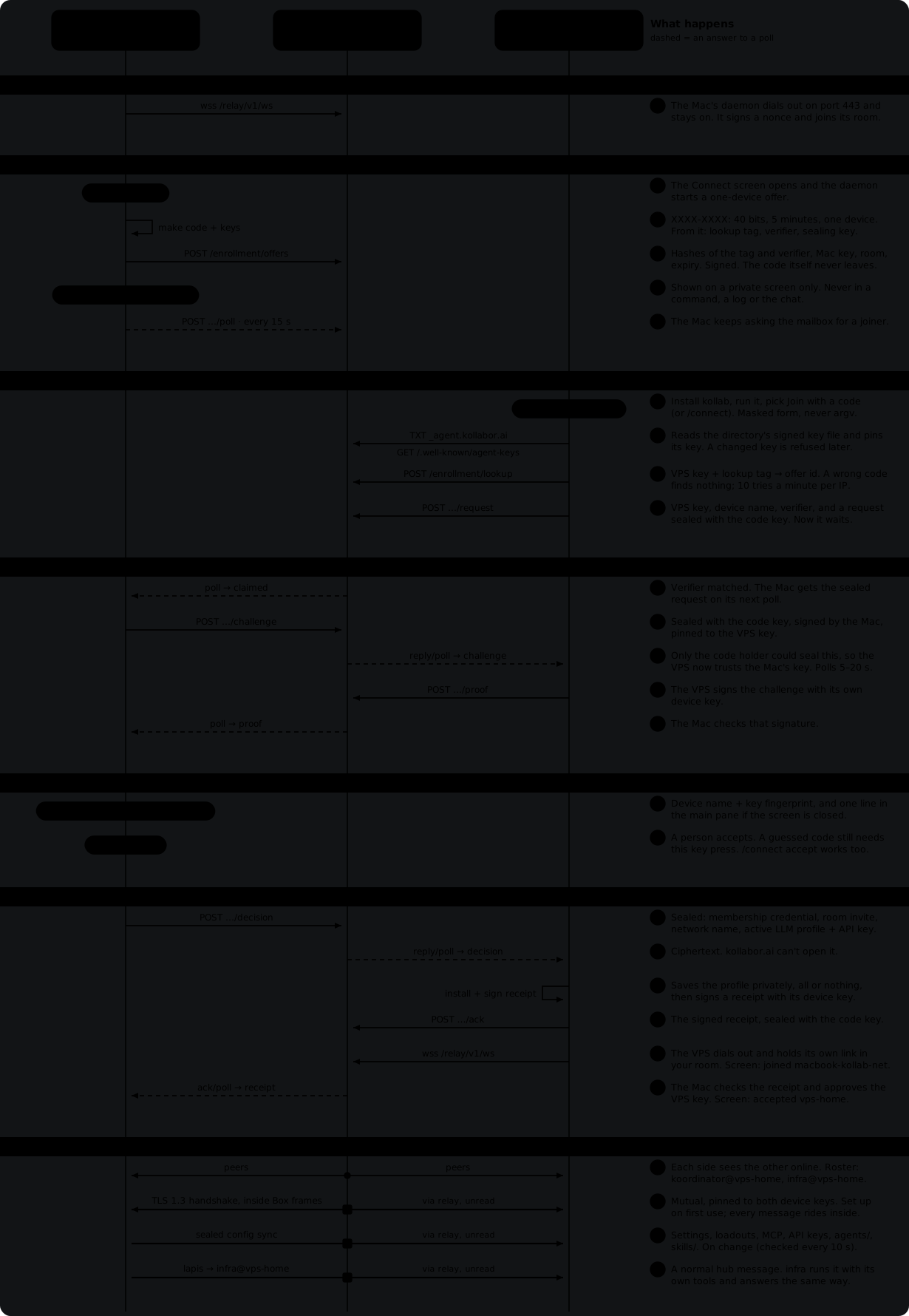
The diagram follows a Mac (A) joining a new VPS (B). Three steps are yours: /connect on A, typing the code on B, and pressing a on A. Steps 4 to 23 are HTTPS calls to a short-lived mailbox on the directory, sealed with a key made from the code, which the directory never sees. A request nobody decides is dropped after ten minutes.
What Joining Copies
A's settings follow A onto every computer it accepts by code, sealed so only that computer can open them: the overrides in ~/.kollab/config.json (loadouts, models, API keys), MCP servers, agents/ and skills/. They go out when you accept, again within about ten seconds of any change on A, and when B reconnects.
A wins. On B each synced setting is read-only in /config and marked as managed by A, and an API key shows only as set.
Not copied: ChatGPT sign-ins (run /login on each computer), project .kollab/ folders, vaults, conversations, and the settings that describe one machine (updates, permissions, hub and voice plugin settings). A stranger you accept from a knock gets none of it. /connect leave on B keeps the values it received as its own.
Inside the Tunnel
Every message rides five layers deep. The directory reads the outer two, the websocket link and the relay frame, and routes on the device key in the frame. Only your two daemons can open the rest: a NaCl Box made from each device's Ed25519 key, a mutual TLS 1.3 session inside it, and the hub message inside that.

- The directory sees each device's public key (it is the address), a device's name when it joins, and the size and timing of what passes. Settings and messages reach it only as ciphertext.
- The join code never crosses the network: you read it on one computer and type it on the other. The directory only sees two hashes made from it.
- Private device keys never leave
~/.kollab/network/.
Message an Agent on Another Computer
Nothing to approve first. On the default trust level, every agent on every device you accepted can message every other, under the Hub's own rules.
Through Your Agent
Tell it: "ask ops@home-server to check the wireguard tunnel and tell me the handshake age." It sends a hub message to ops@home-server, ops wakes on the other computer and answers, and your agent picks the reply up like it would from a local agent. There is no /connect command, key, or address in the loop.
# lapis, in its reply on laptop-kollab
<hub_msg to="ops@home-server">Check the WireGuard tunnel on your machine and
report the latest handshake age for each peer.</hub_msg>

# laptop-kollab
 > lapis -> ops@home-server: Check the WireGuard tunnel on your machine and report…

# home-server
 > lapis@laptop-kollab -> ops: Check the WireGuard tunnel on your machine and report…
 [ops runs: sudo wg show]
 > ops -> lapis@laptop-kollab: wg0 peer 203.0.113.7: latest handshake 38 seconds ago. Healthy.

# laptop-kollab
 > ops@home-server -> lapis: wg0 peer 203.0.113.7: latest handshake 38 seconds ago. Healthy.
Any other agent on either device observes both messages, dimmed, and is not woken. Under open trust an agent may also start a conversation on its own when its task needs it, for example to ask for help. There is no cap on turns; the Hub's usual rules apply (deduplication, wait="true", and agents contacting others only when you or an authorized task directs it).
From a Shell or Cron
kollab --hub msg sends the message, prints each reply as it arrives, and exits 0 when that agent finishes its turn on your request. It uses the same identity whether a person or cron typed it.
Keep a Device Online
The daemon is the device: while it runs, the computer is on the network, with or without a window. Its identity belongs to the folder you started Kollab in, so Kollab started in another folder is a different device and needs its own code. Its name is the computer's name and the folder's, like laptop-app; a second folder with the same name on that computer adds its parent folder, like laptop-feature-app.
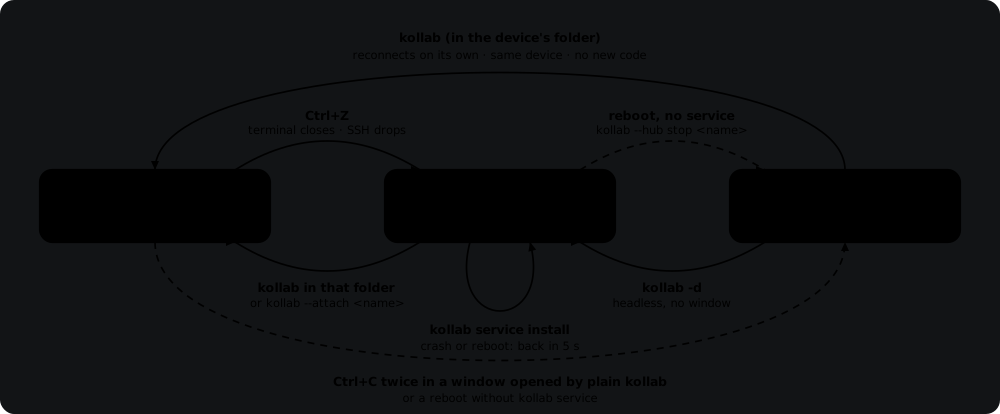
kollab service: the system's service manager keeps the agent up.- Detach. Ctrl+Z, a closed terminal or a dropped SSH session leaves the daemon running.
kollabin the same folder, orkollab --attach <name>, opens a window on it again. From another computer,kollab --attach <name>@<host>does the same over ssh. - Headless.
kollab -d(short for--detached) starts the daemon with no window. - Reconnects by itself. When the link drops, the daemon redials about a second later, backing off to 30 seconds while the directory is unreachable. A message to an offline device waits in the sender's outbox and is retried until it expires; the directory stores nothing.
- SSH. Logging out leaves the daemon running, unless the server's systemd-logind sets
KillUserProcesses=yes.
Keep It Running With kollab service
A daemon survives a closed terminal, but not a reboot, and nothing restarts it after a crash. kollab service hands the folder's agent to the system's service manager:
- Linux: a systemd unit that runs as you and starts at boot, before anyone logs in (sudo writes it). macOS: a LaunchAgent that starts at login. Either way it restarts 5 seconds after it stops.
kollabin the folder attaches to the service's agent, and closing that window leaves the agent running.kollab service uninstallstops it for good.install --printshows the unit without installing it.--env KEY=VALUEadds environment, never a secret: unit files are world-readable.
Until then: keep Kollab open in tmux or run kollab -d, and start it again after a reboot.
Trust Levels
Trust is one setting per network, changed with /connect trust <level>.
| Level | Meaning |
|---|---|
open (default) | Every agent on every accepted device may message every other. Hub rules only. |
agents | Each device lists which of its agents are reachable: /connect allow <device> <agent> and /connect deny <device> [agent]. Messages to those flow under Hub rules. |
manual | Every first message needs a human /connect authorize or /connect send. Replies come back through a task envelope, and questions wait for a human answer. |
Under open, allow and deny say they have no effect. Under manual, a human never types or reads an id: every request and question gets a short number.
/connect trust manual
/connect authorize ops@home-server "check the tunnel"
communication authorized: request 1; expires at 14:05; recipient ops@home-server

/connect task ops@home-server 1        # how is it going
/connect cancel ops@home-server 1      # stop it
/connect withdraw 1                        # take back an authorization nobody used
/connect answer 3 "yes, go ahead"          # answer a remote question
Knocks From Strangers
Someone outside your network can introduce themselves. /connect status shows your contact route, which looks like kollabor.ai/c/0123456789abcdef. Give it to them and they run:
A knock is a call. It rings your device for 5 minutes while Kollab runs there, and the directory keeps nothing. Your main pane says ana-laptop is knocking. /connect knocks to answer once; the text shows only on the knock screen, with the sender's device name and device ID. Press a to accept, r to reject or b to block.
/connect knocks
 Knocks
 ringing        > 1. ana-laptop   device ID 5e6f…7a8b   4:51
                     "Ana from Acme. Can your ops agent review a nginx…"
                     [a]ccept [r]eject [b]lock
 missed         0 of 20
 blocked        0
 contacts       0
 who may knock  everyone   [w] change

/connect allow ana-laptop ops- Accepting records the device with
agentstrust and nothing allowed. A stranger never getsopen. Until you run/connect allow, none of its agents can reach any of yours. - After
allow ana-laptop ops, Ana's agents can messageops@laptop-kollaband nothing else. She sees only the agents you allowed, andopscan answer the agent she knocked from. - Ana never joins your network. Her device stays in her own, and the directory passes messages between the two devices only while both sides consented. She needs to be on the same directory as you when she knocks.
/connect deny ana-laptop ops(or without the agent) stops delivery at once./connect revoke ana-laptopremoves the device and the link.- Only an accept is answered. A rejected or blocked knock rings out on Ana's side like an unanswered one, and her device redials for an hour.
- A knock that rings out while you are away waits under
missedon your device, 20 at most:kknocks back,bblocks,ddeletes.wsets who may knock: everyone, your contacts, or nobody. The web UI has the same screen under Settings → Network → Knocks. - Knocks need Kollab 0.13.0 or newer on both computers. Older versions are never rung and cannot knock until they update.
How the Domain Works
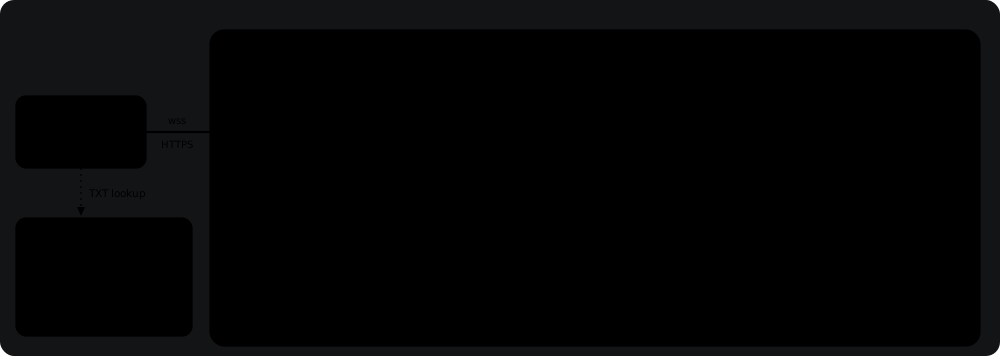
DNS chooses where to look; a signature decides what to trust. On /connect agents.example.com the device reads the domain's _agent TXT record, which only points at its key file. It fetches that file over HTTPS, checks the signature, domain and expiry, pins the key, and dials the relay the file names. kollabor.ai works the same way.
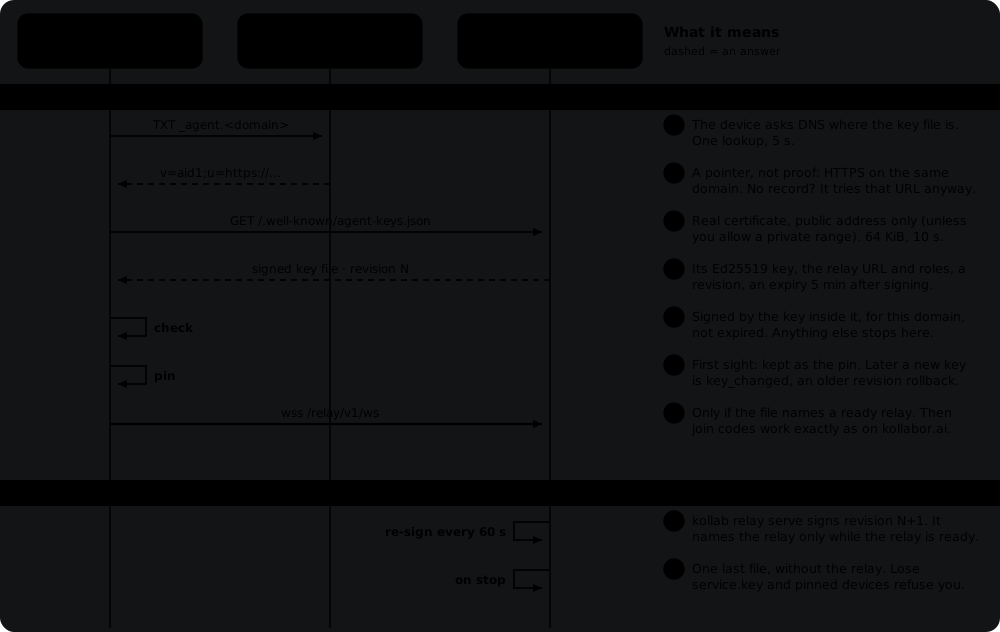
- The key file is re-signed every 60 seconds with a five-minute expiry. It names the relay only while the relay is ready, so a broken relay drops out within a minute.
- Revisions only go up: a device refuses a key file older than one it has seen.
- Lose the directory's signing key and every device that pinned it stops with
key_changed. That is why the state directory needs a backup.
Run Your Own Directory
A company or a group that wants its own directory instead of kollabor.ai runs one command on a server:
One process runs the relay, keeps the signed discovery document published, and serves it as the key file, all on one local port. It creates its signing key on first run, then prints the two things it cannot do for you:
- One DNS TXT record, on
_agent.agents.example.com. - A TLS proxy with four routes: the key file, health, the websocket, and
enrollment/*. Knocks ride the websocket.
--install writes and starts the systemd unit; --print systemd only prints it.| Option | Description |
|---|---|
--print nginx / --print caddy | Print the proxy config for those four routes. |
--print systemd | Print a service unit that runs the same command, as the same user, on the same state directory, for you to install. |
--install / --uninstall | Install that unit for you (sudo writes it), after creating the state directory and key, then enable it at boot and start it. --uninstall stops and removes it. Stop the copy running in your shell first. |
--state-dir | Move the state directory (default ~/.kollab/relay/<domain>). |
--trusted-proxy <ip> | Needed when the proxy runs on a different machine, so per-address limits see the client and not the proxy. |
--max-connections-per-source | Needed when an office sits behind one address. |
Once the proxy is up, every device runs /connect agents.example.com and joins with a code exactly as on kollabor.ai. Nothing touches kollabor.ai.
Back up the state directory. It holds the directory's signing key, the identity every device pinned. A restart keeps it and joined devices reconnect on their own; lose it and every device refuses the new key. A join code or knock that is waiting at a restart ends, and everything else is rebuilt as devices reconnect. One command serves one process; for several workers or hosts, keep using kollab relay run --config, which is what kollabor.ai runs.
Command Reference
Everything lives under /connect. /connect help lists the commands below; /connect help all adds the manual-trust commands and rotate.
| Command | Description |
|---|---|
/connect | The Connect screen: network, this device, join code, requests, online agents. With no network, starts one on kollabor.ai. |
/connect <domain> | Join another directory. |
/connect code | Show a join code alone on a private screen (small terminals). It never reaches scrollback or logs. |
/connect accept <device>/connect reject <device> | Decide a join request by name. |
/connect status | Text view: networks, this device, contact route, online agent@device, trust. |
/connect name <name> | Name this device. |
/connect trust <level> | Set the trust level for this network: open, agents, or manual. |
/connect knock <route> "text" | Ring a stranger's contact route for 5 minutes. Your device redials for an hour. |
/connect knocks | The knock screen: ringing and missed knocks, blocked routes, contacts. Add everyone, contacts or nobody (and for 2h) to set who may knock. |
/connect expect <route> | Accept a route's first knock without asking. |
/connect block <route> | Refuse a route's knocks. /connect unblock allows them again. |
/connect allow <device> <agent>/connect deny <device> [agent] | Choose which agents a device may reach, under agents trust or for an accepted stranger. |
/connect revoke <device> | Remove a device or peer. |
/connect leave [domain] | Disconnect, forget the network, and stop reconnecting. The device can then join another by code. |
/connect help [all] | List these commands. all adds the ones below. |
Advanced (/connect help all)
| Command | Description |
|---|---|
/connect authorize, send, withdraw, answer | Only under manual trust. Authorize a first message, send it, take an authorization back, answer a remote question. |
/connect task, cancel | Only under manual trust. Ask how a request is going, or stop it. |
/connect rotate | After a lost device. |
Coming from an earlier build? The old commands (enroll, offer, requests, peers, invite, join, disconnect, and others) are gone. Typing one prints the command to use now. Long join codes from earlier builds are not accepted; upgrade every computer and issue a new code.
Troubleshooting
| You see | Do this |
|---|---|
connect: unknown subcommand | Check the spelling with /connect help. |
connect: codes never go in a command | Run /connect alone and type the code into the form. |
unknown agent@device | The device is offline or the name is wrong. /connect status lists what is reachable. |
| A code that will not work | It is single-use and lasts five minutes. Press c on the Connect screen, or run /connect code, for a new one. |
| A device listed as offline | Kollab has to be running on it. Start it there. |
this window is not connected to its agent daemon | Quit with /quit and start kollab again. |
To update Kollab, run /upgrade inside Kollab or kollab --upgrade in a shell. After the restart, the connection comes back by itself. A computer too old for the directory says so: this version of kollab is too old for kollabor.ai; run kollab --upgrade.
Next Steps
- 1The Hub
The open channel on one computer, and the messaging rules the network reuses.
- 2Discovery & Identity
Agent naming, identities, and presence.
- 3Slash Commands
Every built-in command, including
/connect.